
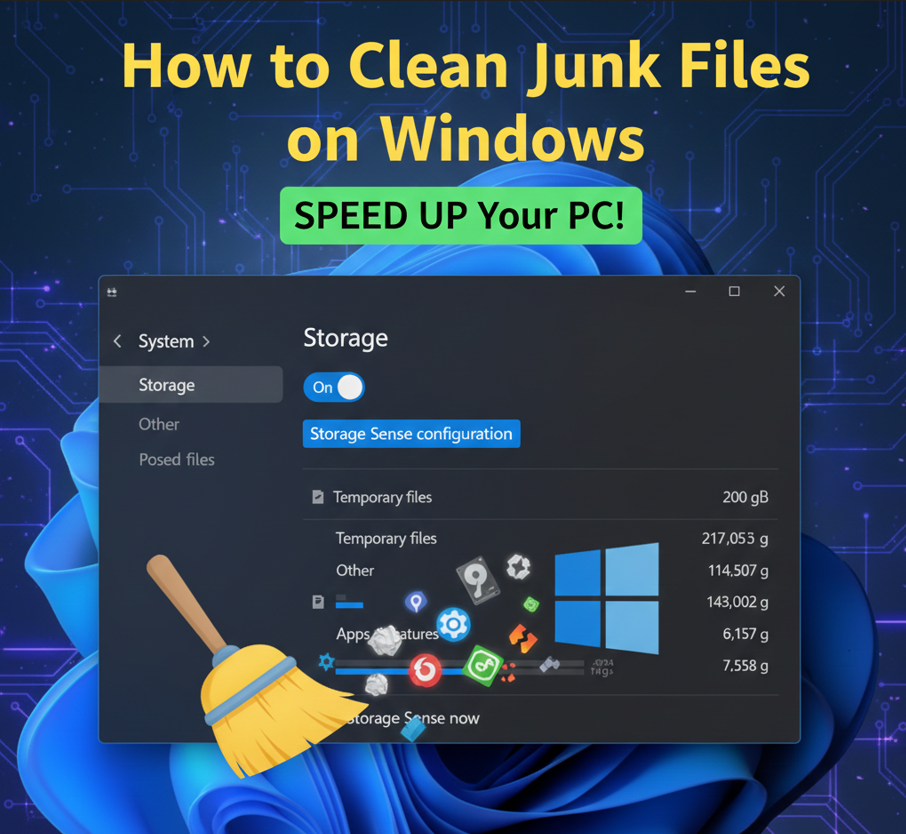
Cleaning junk files on Windows is an essential maintenance task that helps free up disk space, improve system performance, and keep your computer running smoothly. Over time, temporary files, old system updates, browser caches, and other remnants accumulate, cluttering your hard drive.
Here’s a comprehensive guide on how to clean junk files on Windows, ensuring your methods are effective and your content is plagiarism-free.
1. Using Disk Cleanup (Built-in Windows Tool)
Disk Cleanup is Windows’ native tool for removing various types of unnecessary files. It’s safe and easy to use.
Steps:
-
Search for Disk Cleanup: Type “Disk Cleanup” into the Windows search bar and select the app from the results.
-
Select Drive: If prompted, choose the drive you want to clean (usually C: for your main system drive). Click “OK.”
-
Scan for Files: Disk Cleanup will scan your selected drive for files that can be safely removed. This may take a few moments.
-
Review Files to Delete: A window will appear listing different categories of files and the space they occupy.
-
Common items to check:
-
Temporary Internet Files
-
Temporary files
-
Recycle Bin
-
Delivery Optimization Files
-
Thumbnails
-
Windows error reports and feedback diagnostics
-
DirectX Shader Cache
-
-
-
Clean Up System Files (Optional but Recommended): To get rid of even more junk, especially old Windows Update files, click on “Clean up system files.” This will restart the scan and provide more options, including:
-
Windows Update Cleanup (can free up significant space)
-
Previous Windows installation(s) (if you upgraded recently)
-
-
Confirm Deletion: Select all the checkboxes for the file types you want to remove and click “OK,” then “Delete Files” when prompted.

2. Using Storage Sense (Windows 10/11)
Storage Sense is a more automated and modern approach to cleaning up junk files. It can automatically free up space by deleting temporary files and managing your Recycle Bin content.
Steps:
-
Open Settings: Go to “Start” > “Settings” (the gear icon).
-
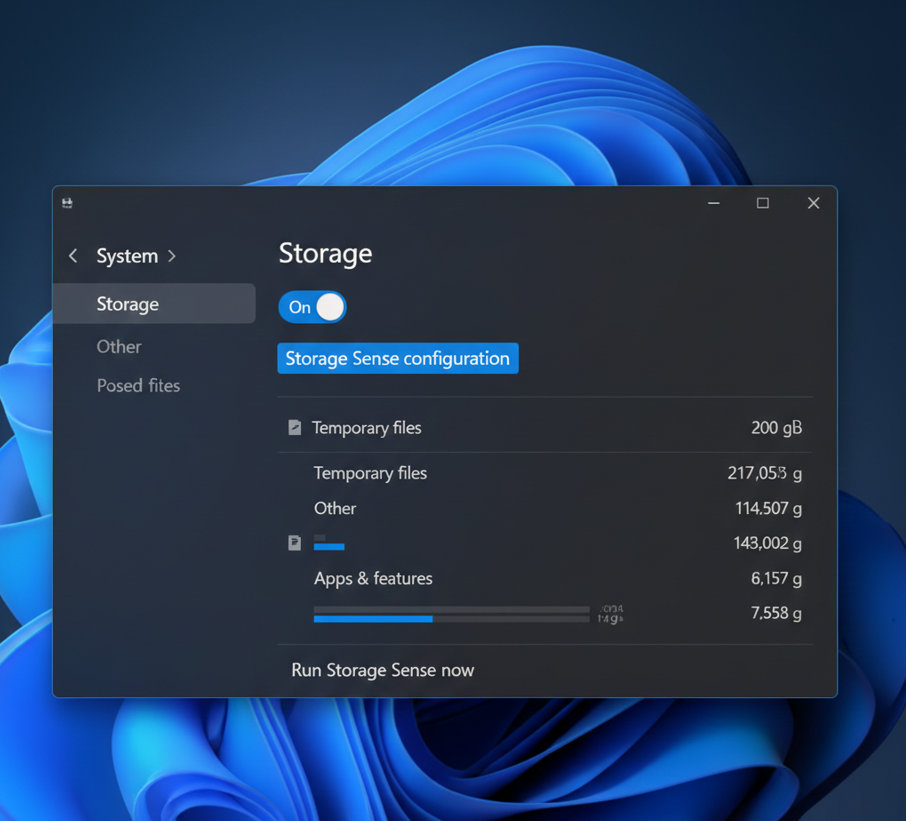
Navigate to Storage: Click on “System” (in Windows 10) or stay on the “System” tab (in Windows 11), then select “Storage” from the left-hand menu.
-
Turn on Storage Sense: Toggle “Storage Sense” to “On.”
-
Configure Storage Sense (Optional): Click on “Storage Sense” (the text, not the toggle) to customize its behavior. Here you can:
-
Set how often it runs (e.g., daily, weekly, monthly).
-
Choose to delete temporary files that your apps aren’t using.
-
Decide when to empty your Recycle Bin (e.g., after 30 days).
-
Manage cloud content (e.g., OneDrive files that are only online).
-
-
Run Manually: You can also click “Run Storage Sense now” to initiate an immediate cleanup.
3. Manually Deleting Temporary Files
You can manually target the main temporary file directories for a quick cleanup.
Steps:
-
Open Run Dialog: Press
Windows Key + Rto open the Run dialog. -
Delete Temp Files:
-
Type
%temp%and press Enter. This will open your user’s temporary files folder. Select all files and folders (Ctrl+A), then press Delete. Skip any files that Windows says are in use. -
Open the Run dialog again, type
temp, and press Enter. This will open the general system temporary files folder (you might need administrator permission to delete files here). Select and delete files as before.
-
-
Delete Prefetch Files (Use with Caution):
-
Open the Run dialog, type
prefetch, and press Enter. This folder contains files used to speed up application launching. While generally safe to delete, some argue it’s best left alone as Windows will recreate them. Delete if you are experiencing performance issues and want a fresh start, otherwise, skip this step.
-
-
Empty Recycle Bin: After deleting files, right-click on the Recycle Bin icon on your desktop and select “Empty Recycle Bin” to permanently remove them.

